Why Some PDF Files Cannot Edit Even With a PDF Reader: What You Need to Know?
When you double-click a document and watch it open instantly, you expect to highlight text, swap out a typo, or fix a date. Yet you quickly discover that some PDF files cannot be edited even with a PDF reader.
This frustration usually stems from the fundamental design of the format, which prioritizes viewing security and layout preservation over casual modification. Readers are built to display pages, not to rewrite them.
The primary reason you cannot edit certain documents is that basic PDF readers lack authoring tools entirely. Applications like Adobe Acrobat Reader or browser-based viewers are digital equivalents of a printed page under glass. They render vector graphics, fonts, and images so you can read them, but they do not contain the underlying layout engine required to reflow paragraphs.
If you want to change a sentence, the software simply does not have the editing commands built into its free interface. You need a dedicated processor or converter to unlock those capabilities.
Understanding Viewer Limitations Versus Full Editors
Standard PDF software acts as a digital display terminal. It translates computer code into visual pixels on your monitor.
This design choice keeps software lightweight and fast. It also ensures that a document looks identical on a Windows laptop, an iPhone, or a Linux workstation.
However, this visual consistency comes at a steep price for anyone wanting to make changes. A reader does not understand paragraphs, margins, or text blocks. It only sees individual characters placed at specific coordinates on a canvas.
If you delete a single word, the surrounding text does not shift to fill the gap. The software treats the page like a flat image rather than a living document.
* Free viewers prioritize fast rendering over content modification.
* Basic software lacks text reflow engines.
* Page coordinates replace editable paragraphs.
* Font mapping tables are often absent in light viewers.
The Impact of Document Security and Permissions
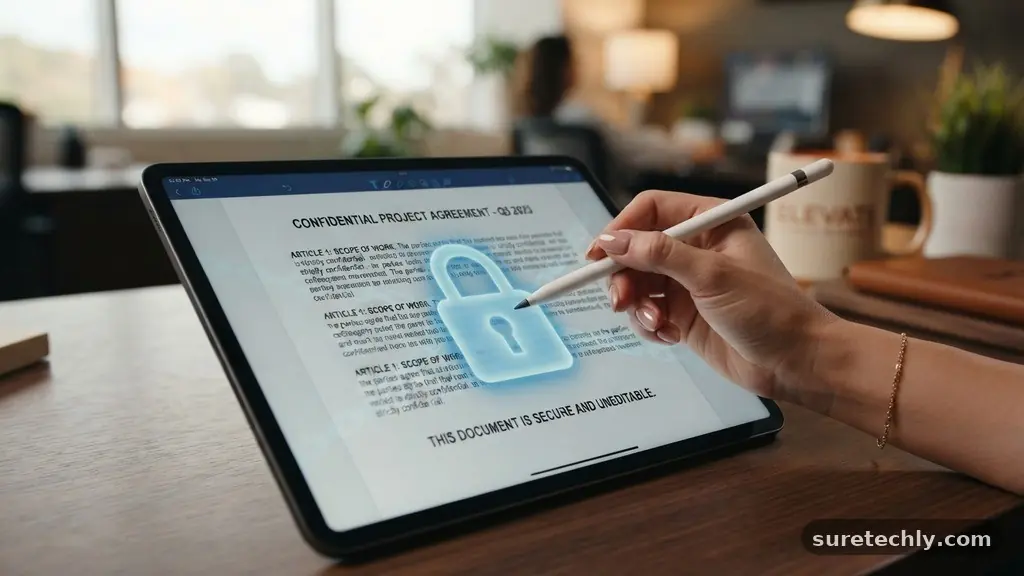
Creators often apply passwords and encryption to protect their intellectual property. These security measures tell any compliant software to restrict specific user actions.
A file might permit reading and printing while explicitly blocking copying, commenting, or modification. When you try to alter the text, the application respects these digital locks and greys out the tools.
Owners use these restrictions to prevent unauthorized tampering with contracts, legal briefs, and financial statements. If you encounter a locked file, you must obtain the master password from the author.
Without that authorization, even premium editing suites will enforce the restrictions. Security protocols ensure that accountability remains intact throughout a document’s lifecycle.
Scanned Documents and Image-Based PDFs
Many files originate from physical paper fed through a desktop scanner or a mobile camera app. These documents are essentially digital photographs wrapped inside a PDF container.
The reader shows a picture of a page, not actual text characters. You cannot click on a sentence because the computer only registers a grid of colored pixels.
To work with these image-centric files, software must use Optical Character Recognition. OCR technology scans the pixel grid, identifies letterforms, and translates them into selectable text.
Without this processing step, your cursor slides across the page without highlighting anything. Many free readers lack advanced OCR engines, leaving scanned pages completely locked to direct editing.
Security Protocols and Digital Signatures
Official agreements and certificates often carry cryptographic protections that lock down the entire package. Flattened Forms and Digital Signatures create a strict seal of authenticity. When an author signs a document, the software binds a mathematical hash to the file contents.
Similarly, the cryptographic hash breaks, invalidating the signature if anyone alters even a single pixel. PDF readers detect this seal and immediately freeze the file against modifications.
This mechanism protects businesses from fraud and ensures that signed agreements remain pristine. Attempting to edit a signed document usually destroys its legal validity.
Non-Standard Fonts and Encoding Issues
Sometimes a file refuses to cooperate because of how the original author embedded the typography. Non-Standard Fonts and Encoding Issues frequently derail editing attempts. If the creator used a proprietary typeface that your machine lacks, the reader falls back on rough visual approximations.
When you try to type a correction, the system cannot match the character encoding map. This mismatch causes garbled symbols or crashes the editing interface entirely.
Professional layout designers often convert text into vector outlines before exporting. This step turns every letter into a graphic shape, guaranteeing that the visual style stays intact across every screen while permanently destroying editable text strings.
Flattened Forms and Interactive Fields
Interactive documents often feature fillable boxes, drop-down menus, and checkmarks designed for user input. Creators sometimes flatten these elements before distribution to lock in the final data. Flattening merges form fields directly into the background layer of the page.
This process transforms interactive controls into static graphics. Once flattened, you can no longer click into a text field to update an address or change a selection.
Government agencies and corporate legal departments routinely flatten files to archive final submissions safely. You can learn more about digital document standards through resources like the Adobe Acrobat online overview.
Practical Workarounds for Locked Files
When you urgently need to modify a restricted file, standard viewing tools will not suffice. You must employ specialized conversion utilities or document conversion software. Converting the PDF into a Microsoft Word document often restores editable text paragraphs.
Another option involves printing the file to a virtual PDF printer, which strips out old permission flags. However, this method will not fix scanned image files unless you run an OCR pass first. Always ensure you have permission from the document owner before bypassing security restrictions.
Frequently Asked Questions
Can I use a password cracker to edit a secured PDF?
Attempting to crack document passwords often violates digital security laws and terms of service. Most professional software will honor the permission flags set by the original author unless you possess the correct administrative password.
Why does my cursor turn into a hand tool instead of an I-beam?
The hand tool indicates that the reader is currently in navigation mode rather than selection mode. You can usually switch modes by clicking the text select icon in the toolbar, provided the file permissions allow text interaction.
How can I edit a PDF that is just a picture?
You need software that features Optical Character Recognition. The OCR engine reads the visual pixels and generates a hidden text layer beneath the image, allowing you to highlight and modify the contents.
Why do some PDFs let me highlight text but not change it?
Highlighting only requires a text layer to be present for reading purposes. Modifying that text requires authoring permissions and editing engines that basic viewers simply do not possess.
Conclusion
Navigating digital documents becomes much easier once you understand that some PDF files cannot be edited even with a PDF reader due to intentional design choices. Security permissions, flat image scans, and digital signatures all serve vital roles in protecting document integrity.
When you encounter a locked file, look for conversion tools or request an editable source copy from the author. Respecting these digital boundaries keeps sensitive information secure across every workflow.