How to Make Older Software Work More Reliably on Newer Devices: Essential Strategies
Figuring out how to make older software work more reliably on newer devices is a common challenge when hardware upgrades outpace application lifecycles. Newer operating systems introduce security frameworks and interface changes that often break legacy programs, leaving users with error codes instead of functional tools. Fortunately, you can bridge this technological gap with the right configuration tweaks.
Diagnosing Legacy Incompatibility Issues
Diagnosing Legacy Incompatibility Issues starts with looking at the exact error message your system produces during a crash. When an older program fails on a modern operating system, the root cause is usually a missing dependency, an architecture mismatch, or permission conflicts. Event Viewer on Windows and the Console utility on macOS provide detailed logs that pinpoint the exact module or DLL file causing the application to hang.
Before applying fixes, you need to determine whether the software is 32-bit or 64-bit. Modern versions of macOS have completely dropped support for 32-bit applications, while modern Windows versions still run 32-bit apps through a translation layer.
Right-clicking the application executable and inspecting its properties reveals its bit architecture. If you are on a Mac, you can check this by selecting Get Info and inspecting the Kind field in the panel.
Another common culprit is altered API calls and security restrictions built into modern kernels. Newer platforms enforce stricter user account control and sandbox environments that block legacy apps from writing data to protected system folders. Identifying these file-system or registry blocks lets you target your troubleshooting steps directly to the application’s permission requirements rather than guessing blindly.
Adjusting Windows Compatibility Settings
Adjusting Windows Compatibility Settings is often the fastest way to get legacy programs running without third-party tools. Microsoft builds a compatibility layer directly into Windows, designed to trick older software into thinking it is running on Windows XP, Windows 7, or an earlier iteration. Right-click the shortcut or executable file, select properties, and Navigate to the Compatibility tab to access these hidden switches.
Inside this panel, you can check the box to run the program in compatibility mode for an older operating system. You should also configure privilege levels by checking the box to run the program as an administrator. For display issues, such as blurry text or distorted menus, use the high DPI scaling overrides to force the system to handle scaling properly. This stops modern displays from stretching legacy user interfaces into unreadable blocks of pixels.
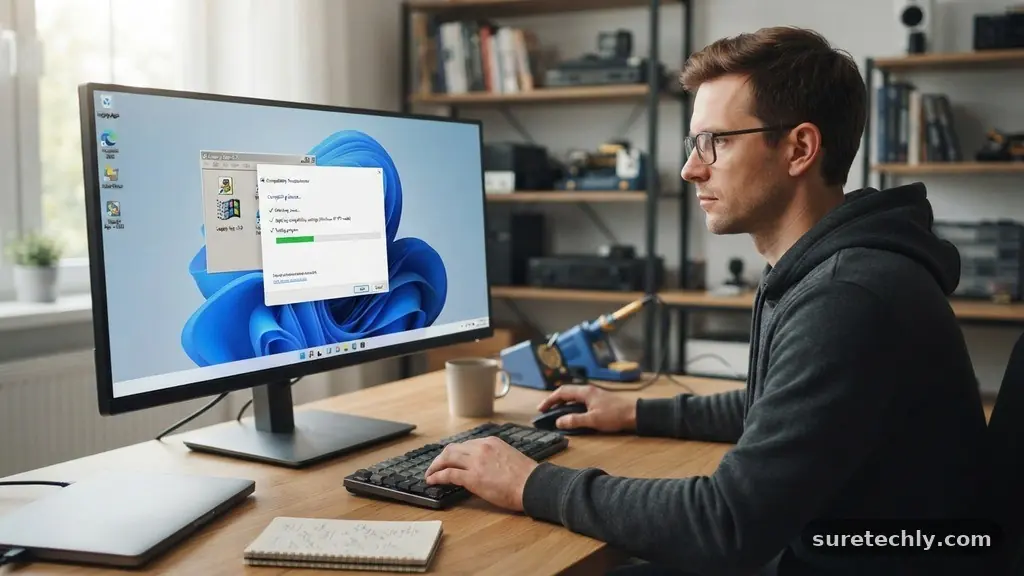
Sometimes the built-in troubleshooting wizard does the heavy lifting for you. Clicking the Run compatibility troubleshooter button lets Windows test different settings automatically based on telemetry data. Saved profiles ensure that once you find a combination that works, the operating system applies those exact parameters every single time you launch the software.
Managing macOS Architecture Transitions
Mac users face distinct challenges when hardware transitions outpace software support, especially with the industry shift from Intel processors to Apple Silicon. Running older Mac applications on modern M1, M2, or M3 chips requires the Rosetta 2 translation layer. Rosetta translates x86_64 instructions into ARM-based machine code on the fly, allowing vintage software to function on modern hardware.
If an application fails to launch after a macOS update, checking the “Open using Rosetta” box in the application’s Get Info window usually resolves the crash. However, software that relies on kernel extensions or old 32-bit architecture will still fail because Apple completely removed those execution frameworks. For enterprise tools or critical productivity suites, you may need to check the developer portal or official documentation for native ARM updates.
Performance drops can occur when emulation overhead taxes your CPU. To mitigate this, keep your operating system updated to the latest point release, as Apple frequently optimizes Rosetta translation routines. If native performance is non-negotiable, you might need to isolate the software inside a dedicated execution environment rather than relying on direct translation.
Utilizing Virtual Machines and Emulation
Utilizing Virtual Machines and Emulation offers the most foolproof isolation method for running vintage programs. Software such as VMware Fusion, Parallels Desktop, or VirtualBox lets you spin up a complete virtual operating system inside your current desktop environment. This approach eliminates architecture conflicts by running the older software on the exact operating system it was designed for.
Virtualization handles driver incompatibilities effortlessly because the virtual machine abstracts your physical hardware into standard, predictable components. Legacy hardware emulation also allows older games and industrial software to access virtualized serial ports, floppy drives, and older graphics processors. This is crucial for niche applications that refuse to talk to modern NVMe storage drives or high-refresh-rate monitors.
Resource allocation is the main trade-off when running virtual machines. You must assign a specific amount of RAM and CPU cores to the guest operating system, which reduces the resources available to your host machine. For basic word processors and accounting tools, a lightweight virtual machine requires minimal resources and runs smoothly alongside your modern applications.
Leveraging Specialized Utility Layers
Leveraging specialized utility layers opens up compatibility options that standard operating system tools cannot touch. Tools like Wine and its commercial counterpart CrossOver allow Linux and macOS users to run Windows-based applications without installing a full Windows license or virtual machine. These compatibility tools translate Windows API calls into POSIX-compliant system calls on the fly.
Another fantastic utility approach involves containerization and custom wrapper scripts. Advanced users often configure Docker containers or specialized sandbox tools to isolate legacy environments from the host system’s updated libraries and altered directory structures. This stops modern system updates from accidentally breaking dependencies that your vintage software relies on to function properly.
When dealing with old DOS games or specialized command-line tools, emulators like DOSBox provide a complete software-defined hardware environment. These utilities simulate vintage sound cards, processors, and memory limits with incredible accuracy. Below is a quick comparison table showing how different methods stack up against common legacy software challenges.
| Method | Best For | Performance Impact | Setup Complexity |
|---|---|---|---|
| Compatibility Mode | Old Windows desktop apps | Negligible | Very Low |
| Virtual Machines | Full legacy OS environments | Moderate to High | Medium |
| Wine / CrossOver | Running Windows apps on Mac/Linux | Low to Moderate | Medium |
| Emulation (e.g., DOSBox) | Vintage DOS and arcade software | Very Low | Low |
Network and Security Workarounds
Network and security workarounds are often necessary because modern web protocols and security certificates leave older software stranded. Vintage web browsers and legacy client applications cannot parse modern TLS 1.3 encryption standards or valid SSL certificates. This results in constant connection timeouts and frustrating handshake failures when the software tries to fetch data online.
You can bypass these encryption walls by routing traffic through a modern local proxy or a reverse proxy server. The proxy handles the modern security handshake and hands unencrypted or older-protocol traffic directly to your legacy application on a local loopback address. For official guidance on secure network protocols, you can consult resources like the National Institute of Standards and Technology to understand modern cryptographic baselines.
Disabling automatic update checks inside the legacy software is another vital security step. Old update servers are typically offline, and trying to ping them can cause the application to freeze or crash indefinitely. Turning off telemetry and cloud sync features also prevents the app from querying deprecated APIs that no longer exist on modern web servers.
Maintaining File Format Compatibility
Maintaining file format compatibility ensures your older software can still open, edit, and save documents without corrupting modern data structures. Older applications often use proprietary binary formats that modern tools struggle to parse accurately. Conversely, modern applications default to XML-based formats that crash vintage programs instantly.
Establishing a reliable conversion pipeline solves this friction. You should rely on intermediate exchange formats like CSV, RTF, or plain text whenever moving data between vintage and modern software suites. For complex documents, exporting files to standardized open formats before transferring them to your newer device prevents layout shifts and data loss.
Keeping a legacy conversion workstation offline in your workspace is a practical strategy for heavy enterprise users. If an old database format refuses to open in any modern utility, keeping a vintage laptop around just for exporting records saves hours of troubleshooting time. Here are the core file formats you should use for smooth data migration:
- Plain text and CSV for tabular data and database exports
- Rich Text Format (RTF) for basic word processing documents
- Legacy PDF versions (like PDF 1.4) for fixed-layout archiving
- Uncompressed TIFF or BMP files for vintage image editing tools
Preventing Future Software Obsolescence
Preventing future software obsolescence comes down to adopting open-source alternatives and maintaining robust digital archiving habits. Proprietary software locks your data behind closed ecosystems that stop working the moment a developer drops support. Transitioning your critical workflows to open-source tools guarantees you have access to the source code to recompile programs for future architectures.
Backing up installer files alongside your active data is another simple habit that saves immense future headaches. Software developers frequently pull legacy installers from their websites, making it impossible to reinstall your favorite tools on a new machine years down the track. Storing offline installers on external drives ensures you always have access to the exact version you need.
Finally, adopting a modular approach to your digital toolkit reduces your reliance on single monolithic applications. When you break your workflow into smaller, interoperable tools, upgrading your device becomes a low-stress exercise rather than a major operational disruption.
Frequently Asked Questions
Why does older software crash instantly on my new computer?
New operating systems update memory management rules, security permissions, and API calls, which causes legacy code to throw unhandled exceptions. Using compatibility modes or virtualization layers usually resolves these abrupt crashes.
Can I run 32-bit applications on a modern Mac?
No, modern macOS versions have completely removed 32-bit execution support from the kernel. You must run those applications inside a virtual machine running an older version of macOS or Windows.
Is it safe to connect legacy software to the internet?
Generally no, because older software lacks support for modern encryption standards and security patches. It is best to firewall legacy applications or run them on isolated networks without direct internet access.
How do I fix blurry fonts in old Windows programs?
Right-click the application executable, open its compatibility properties, and click on high DPI scaling settings. Overriding the high DPI scaling behavior and letting the application handle it usually restores crisp text rendering.
Conclusion
Making older software work more reliably on newer devices is entirely achievable when you approach compatibility with a methodical toolkit. By leveraging built-in OS switches, virtual environments, and smart translation layers, you can keep your favorite legacy tools operational for years to come. Take a moment to audit your oldest applications today and set up the right compatibility profiles before your next hardware upgrade.