What Is Portable Software and When Is It Better Than a Regular Installation?
Understanding the nuances of portable software and when it is better than a regular installation allows you to maintain a cleaner, more efficient computer environment. Unlike traditional programs that embed themselves deep into your operating system, portable versions exist in a self-contained format that leaves your system’s core files untouched.
This approach to software management is particularly valuable for users who frequently switch between computers, value privacy, or want to avoid the common pitfalls of bloated system registries. By choosing the right tool for your workflow, you can significantly reduce clutter while maintaining access to all the essential utilities you rely on daily.
Defining Portable Software and Its Core Mechanics
Portable software refers to programs designed to run without being formally installed on a host computer. When you run a standard program, it typically writes data to the Windows Registry, creates folders in the hidden AppData directories, and scatters dynamic link libraries across your system folders.
A portable application, by contrast, operates as a standalone executable that keeps all its necessary files within a single folder. Because it does not require a complex installation wizard, it does not rely on the host system’s configuration to function.
This registry-free nature is the defining feature of portable tools. When you launch the application, it reads its settings from a local configuration file—usually a .ini or .xml file—residing in the same folder as the executable.
This means the program effectively ignores the host operating system’s registry, preventing the accumulation of “junk” data that often slows down computers over time. You can move the entire application folder to a USB flash drive or a different directory, and the software will continue to operate exactly as it did before.
The concept of software portability is rooted in the idea of decoupling an application from the operating system’s state. When you want to remove the program, you simply delete the folder.
There is no need to navigate to an “Add or Remove Programs” menu or run an uninstaller that might leave behind residual files. This zero-footprint approach makes portable software an ideal choice for users who prioritize system stability and prefer to keep their primary drive uncluttered.
When Portable Software Outperforms Regular Installations
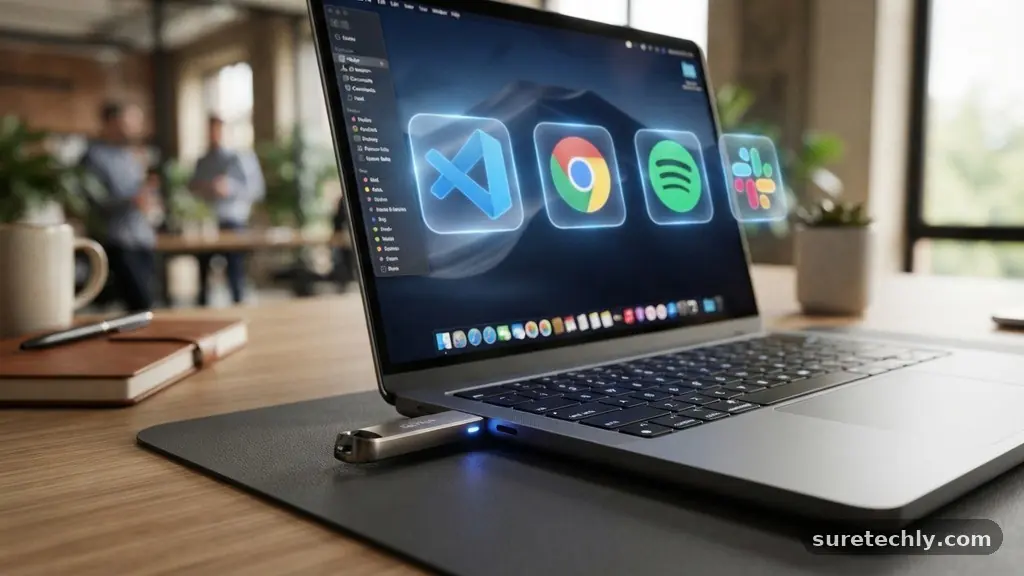
Deciding between portable software and when it is better than a regular installation often comes down to your mobility and privacy requirements. If you find yourself working on multiple machines throughout the day, carrying your tools on a thumb drive ensures a consistent experience regardless of which computer you touch.
You won’t have to reconfigure your bookmarks, interface preferences, or keyboard shortcuts because those settings travel with the application folder. This is a massive time-saver for IT professionals who need a consistent toolkit to troubleshoot various systems without leaving a trace of their presence behind.
Privacy-conscious users also benefit significantly from this model. Because portable apps do not interact with the host system’s registry, they leave virtually no record of their existence once you remove the drive.
This is helpful when using public computers, such as those in libraries or shared office spaces, where you want to perform tasks without leaving personal data behind. You are effectively performing application isolation, keeping your digital footprint contained within your own hardware.
Another major advantage is the avoidance of software bloat. Many traditional installers automatically add background processes, startup entries, and service tasks that consume CPU cycles and RAM.
By running portable versions, you only activate the resources you need when you actually open the program. This keeps your operating system lean and prevents the “performance degradation” that typically happens to Windows machines after a year or two of installing and uninstalling dozens of standard applications.
Comparing Traditional vs. Portable Approaches
To understand the practical differences, it helps to look at how these two methods handle system resources and data management. A traditional installation is designed for long-term integration, which is beneficial for complex suites like Adobe Creative Cloud or high-end video games.
However, for utility tools, web browsers, or text editors, the overhead of a standard installation is often unnecessary. The table below highlights the primary differences between these two deployment models.
| Feature | Traditional Installation | Portable Software |
|---|---|---|
| Registry Impact | High (Writes entries) | None (Registry-free) |
| System Footprint | Scattered across folders | Contained in one folder |
| Portability | Locked to host machine | High (USB or Cloud) |
| Uninstallation | Requires uninstall wizard | Delete the folder |
| Administrative Rights | Usually required | Often not required |
As shown in the table, the primary trade-off is between deep system integration and total flexibility. Traditional software is often better for applications that need to interact with the OS kernel, hardware drivers, or deep system services. Conversely, portable software is the clear winner for productivity apps and portable utilities that do not need to “hook” into the Windows environment.
The Role of Administrative Privileges and Security
One of the most practical benefits of using portable software is the ability to bypass administrative privileges on restricted machines. In many corporate or academic environments, users are blocked from installing new software to prevent the introduction of malware or unauthorized tools.
Because portable applications do not perform system-wide changes, they can often be run directly from a folder without triggering a UAC (User Account Control) prompt. This gives employees and students the flexibility to use their preferred productivity tools without needing to submit IT support tickets for every minor request.
However, this flexibility requires caution regarding security. While portable apps are generally safer because they don’t modify the registry, they can still be a vector for malicious scripts if the source is untrusted.
Always download your portable tools from reputable, verified developers rather than third-party aggregation sites. If you are interested in the technical standards behind these tools, you can read more about portable software standards and best practices to ensure your collection remains secure and functional.
Managing Portable Apps with Launchers
If you decide to adopt a library of portable tools, managing dozens of individual folders can quickly become chaotic. This is where a portable launcher becomes an essential companion.
A launcher is a master application that sits on your USB drive or local folder, providing a centralized menu to access all your portable apps. These tools often allow you to categorize your software into groups, such as “Internet,” “Graphics,” or “System Tools,” making it much easier to keep your workspace organized.
Advanced launchers also handle environment variable management. Some applications require specific paths or settings to be set before they can run correctly; a good launcher can automate this process every time you click an icon.
By using a launcher, you transform a scattered collection of folders into a cohesive, portable operating system that you can carry in your pocket. This level of organization is what separates a casual user from someone who has truly mastered the art of portable computing.
Cloud Storage Synchronization and Portability
In the modern era, the physical USB drive is no longer the only way to achieve portability. By keeping your portable software folders inside a folder synced with cloud services like Dropbox, OneDrive, or Google Drive, you can achieve cloud storage synchronization of your tools. This means that if you have a laptop at home and a desktop at the office, both machines can access the same set of programs with the same settings.
When you update a configuration file on your home computer, the change is instantly pushed to the cloud and reflected on your work machine. This setup effectively turns the cloud into your personal hard drive.
It removes the risk of losing a physical USB stick and ensures that your tools are always up-to-date across all your devices. Just be mindful of the sync speed and ensure you aren’t trying to run massive, multi-gigabyte applications directly from a cloud-synced folder, as the latency can sometimes cause issues.
Common Challenges and Limitations
Despite the many benefits, portable software is not a universal solution for every computing need. Some applications are so deeply tied to the Windows ecosystem—such as those requiring specific system drivers or complex COM components—that they simply cannot function in a portable format.
If a program needs to install a kernel-level driver to function, it will never be truly portable. Attempting to force these programs into a portable state often results in broken functionality or persistent errors.
Another challenge is the lack of automatic updates. Traditional software often comes with an “Auto-Update” feature that checks for new versions, downloads them, and patches the files in place. Portable apps frequently require manual intervention, where you must download the new version and overwrite your existing folder.
If you have a large library of tools, keeping them all current can become a tedious maintenance task. Some users solve this by using specific “platform” installers that manage updates for their entire portable library, but this adds a layer of complexity to your setup.
Frequently Asked Questions
Does portable software run slower than installed software?
Generally, no. Because portable software does not write to the registry or install background services, it often uses fewer system resources than standard installations. The only potential slowdown occurs if you are running the application from a very slow USB 2.0 drive, which can lead to longer initial load times.
Can I turn any software into a portable version?
Not necessarily. While some tools allow you to “extract” an installer into a portable folder, many complex programs have hard-coded paths and registry dependencies that require an official installation. Only software specifically designed to be portable will function reliably without being installed.
Is it safe to use portable software on my work computer?
It depends on your company’s IT policy. While portable apps are technically safer because they don’t modify the system registry, many corporate environments strictly forbid unauthorized software. Always check your IT usage policy before running external programs on a company-owned device.
What happens to my data if I delete the portable folder?
When you delete a portable folder, the program and all its associated settings, history, and configuration files are removed from your system. This is why it is critical to back up your data if the application stores important files like databases or project archives within its own folder structure.
Why do some portable apps still create folders in AppData?
Some programs are “semi-portable,” meaning they are designed to be run without an installer but still default to saving user data in the standard Windows AppData folder. If you want a truly portable experience, check the program’s settings to see if you can force it to save data to a local “Data” folder within the application directory.
Conclusion
Embracing the flexibility of portable software allows you to maintain a clean, high-performance system while keeping your essential tools ready for use on any computer. By understanding that portable software and when it is better than a regular installation depends on your need for mobility and system cleanliness, you can curate a professional-grade toolkit that travels with you. Whether you rely on a physical USB drive or take advantage of cloud synchronization, the ability to run apps without registry clutter is a significant advantage for any power user.
Start by converting your most frequently used utilities to portable versions and observe how much cleaner your system feels after a few weeks of use. Once you experience the freedom of a registry-free workflow, you will likely find it difficult to return to the traditional, invasive installation process. Explore the available options for your favorite tools today and enjoy a more modular approach to your digital life.