How to Organize Downloaded Files So You Can Find Them Later
Mastering the art of organizing Downloaded Files So You Can Find Them Later transforms your computer from a digital junk drawer into a streamlined workspace. Most users lose hours every week simply hunting for misplaced documents, invoices, or images hidden deep within their hard drives. By implementing a consistent system for sorting and naming, you eliminate the cognitive load of searching and regain control over your digital environment.
This process is not just about tidiness; it is about reclaiming your time and focus for more meaningful tasks. Taking proactive steps today ensures that your future self spends less time clicking through folders and more time actually using the information you have saved.
The Immediate Solution: Setting Up Your Default Download Folder
The most effective way to address the problem of organizing Downloaded Files So You Can Find Them Later is to stop the chaos at the source. By default, most browsers dump every item into a single, monolithic folder that quickly becomes impossible to parse. You should immediately change your browser settings to “Ask where to save each file” or, at the very least, periodically purge that default directory.
Treating your downloads folder as a temporary staging area rather than a permanent storage cabinet is the single most important habit for digital organization. Once a file is downloaded, move it to its permanent home within thirty minutes of acquisition.
Establishing a Logical Folder Hierarchy
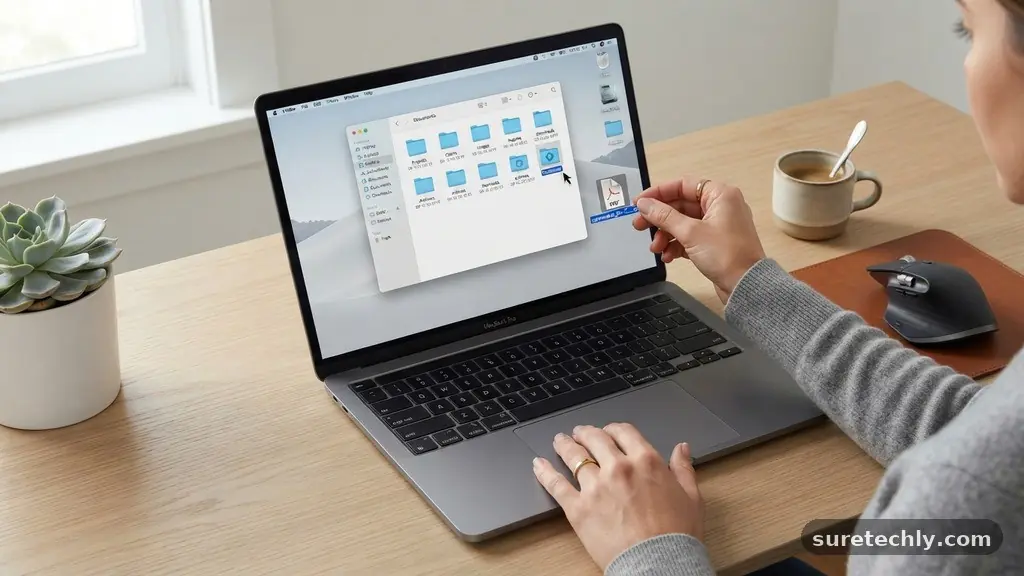
A robust directory structure acts as the skeleton for your entire digital life. Start by creating a primary “Documents” or “Projects” root folder and then break that down into broad, high-level categories such as “Finance,” “Work,” “Personal,” and “Media.” Avoid creating more than three levels of nesting, as deep folder hierarchies become difficult to navigate and prone to misplacement.
You want to be able to reach any file within three clicks of opening your file explorer. If a category grows too large, consider splitting it into sub-folders based on years or specific project names rather than burying files deeper into the tree.
Developing a Consistent File Naming Convention
A file naming convention is the most powerful tool you have for long-term retrieval. If you rely on generic names like “document1.pdf” or “invoice_final_v2.docx,” you will inevitably lose track of your work. Adopt a consistent format that includes the date, the project name, and a descriptive tag.
A standard string like “YYYY-MM-DD-ProjectName-ContentDescription” allows your operating system to sort files chronologically and makes them instantly recognizable. This simple shift in behavior means that even if a file ends up in the wrong folder, a quick keyword search will bring it to the top of your results.
Leveraging Metadata and Tagging Systems
While folder structures are essential, modern operating systems offer advanced features that go beyond simple categorization. Tagging systems allow you to assign multiple labels to a single file, which is helpful when a document belongs to two different project categories. For example, a receipt could be tagged as both “2024-Taxes” and “Home-Renovation.”
You can also utilize file metadata, such as “Author,” “Date Created,” or “Keywords,” which are searchable fields within your operating system file explorer. By populating these fields, you turn every file into a searchable database entry rather than just a static icon on a screen.
Automated File Sorting for Efficiency
Manual organization is prone to human error, but automated file sorting can handle the heavy lifting. Various utilities exist that monitor your downloads folder and automatically move files to specific locations based on their file extension or name. For instance, you can set a rule that sends all “.pdf” files to a “Documents” folder and all “.jpg” images to a “Photos” folder automatically.
These tools act as a digital janitor, ensuring that your desktop and downloads folder stay clear without requiring constant manual intervention. This level of automation is particularly useful for people who download hundreds of files weekly.
Comparing Digital Storage and Backup Methods
Choosing the right storage medium is critical for both accessibility and security. Relying solely on your internal drive is risky, as hardware failure can lead to total data loss.
You should balance local storage with cloud storage synchronization to ensure you have access to your files from any device. The following table illustrates the trade-offs between common storage strategies for your files:
| Storage Method | Pros | Cons |
|---|---|---|
| Local Drive | Fast access, no internet required | Risk of hardware failure, limited capacity |
| Cloud Storage | Accessible anywhere, automatic backups | Monthly cost, dependency on internet |
| External Drive | High capacity, air-gapped security | Physical portability, manual connection |
Maintaining Your System Through Digital Decluttering
Digital decluttering is a recurring maintenance task, much like cleaning your home. Set aside fifteen minutes every Friday afternoon to review your “Inbox” or “Downloads” folders and move any stragglers to their proper destinations. Delete duplicate files, rename items that don’t fit your naming convention, and empty your trash bin.
Regular maintenance prevents the buildup of “digital dust” that eventually leads to a chaotic system where files become impossible to track. Treat this as a ritual that clears your mind for the upcoming week and keeps your file management system functioning at peak performance.
Integrating Cloud Backup Solutions
Cloud backup solutions provide a safety net that protects your organized files from accidental deletion or hardware failure. Unlike simple cloud storage, which focuses on file synchronization across devices, a dedicated backup service captures your entire system state. Services like Backblaze offer continuous, automated protection that works in the background without needing your input.
By ensuring your files are backed up off-site, you can organize with confidence, knowing that your structure is preserved even if your primary computer experiences a catastrophic failure. Always verify your recovery process at least once a year to ensure your data is actually accessible.
Addressing Common Questions
How often should I organize my files?
You should aim for a quick, weekly sweep to handle new files and a more comprehensive quarterly review to audit your folder structure. Consistency is far more important than the amount of time you spend, so fifteen minutes a week is better than a four-hour marathon once a year.
What should I do with files I am not sure about?
Create a “Sort Later” folder and move questionable files there. Set a recurring task to review this folder every month, and if you haven’t touched a file in that time, either archive it to an external drive or delete it entirely.
Does file naming really matter if I have search?
Search indexing is powerful, but it relies on the quality of the data available to it. If you name your files with descriptive terms, your search results will be significantly more accurate than if you rely on the computer to guess what a file contains based on its content.
Should I use desktop shortcuts for organization?
Shortcuts are excellent for frequently accessed projects, but do not use them as your primary filing system. Keep your shortcuts organized in a specific folder to avoid cluttering your desktop, which can slow down your operating system’s boot time and visual clarity.
Conclusion
Successfully organizing Downloaded Files So You Can Find Them Later is a habit that pays dividends in reduced stress and increased productivity. By establishing a clear folder hierarchy, enforcing a strict naming convention, and utilizing automated tools, you remove the friction from your daily digital tasks. Remember that your system does not need to be perfect from day one; it only needs to be consistent.
Start by cleaning your current downloads folder today, then slowly apply these principles to your older archives. As you build these routines, you will find that your digital workspace becomes a reliable partner in your work rather than a source of constant frustration. Consistency is the key to maintaining a clean and accessible library of digital assets.